Block Instagram until you’ve done your pushups
Instagram is usually the first app people want to block, and it’s a hard one to block well. It rarely shows up as one huge session in a screen time report. It shows up as forty short ones: a quick look at a story, a reply to a DM, and then twenty minutes of Reels you never meant to open.
So this page covers why Instagram is so good at that, and how to set it up so that opening it costs ten pushups rather than one tap.
Why Instagram is so hard to put down
Most distracting apps do one thing. Instagram does four, and each one hands you to the next:
- Direct messages give you a legitimate reason to open the app. Somebody sent you something and replying is polite.
- Stories are short, they auto-advance, and the little rings at the top tell you there’s always one you haven’t seen.
- Reels are one tab away and never end.
- The feed and Explore are what’s left when the Reels start repeating.
That chain is the problem. You almost never open Instagram meaning to scroll for half an hour. You open it for a real reason, usually a message, and the app is built to turn that small errand into a session. A blocker that says “no Instagram today” also takes away the errand, so you end up turning it off. What works better is putting a small, fixed price on getting in, and then letting the balance run out while you’re there.
What pushups do that a timer doesn’t
Instagram has a built-in daily limit, and your phone has app limits too. Both stop you with a reminder you can dismiss. At 11pm, dismissing it costs nothing, so you dismiss it.
With pushups, getting past the lock costs something you have to pay with your body. It’s a small price, but it’s real. Some nights you’ll get on the floor, do ten, and answer your messages. Other nights you’ll look at the lock screen and realise you didn’t want Instagram enough to bother. Either way, opening the app was a decision you made.
Set it up on iPhone
On iPhone, only Apple can block an app, so HonorFit uses Screen Time for the lock.
- Open HonorFit and tap Grant Screen Time Access, then approve Apple’s prompt.
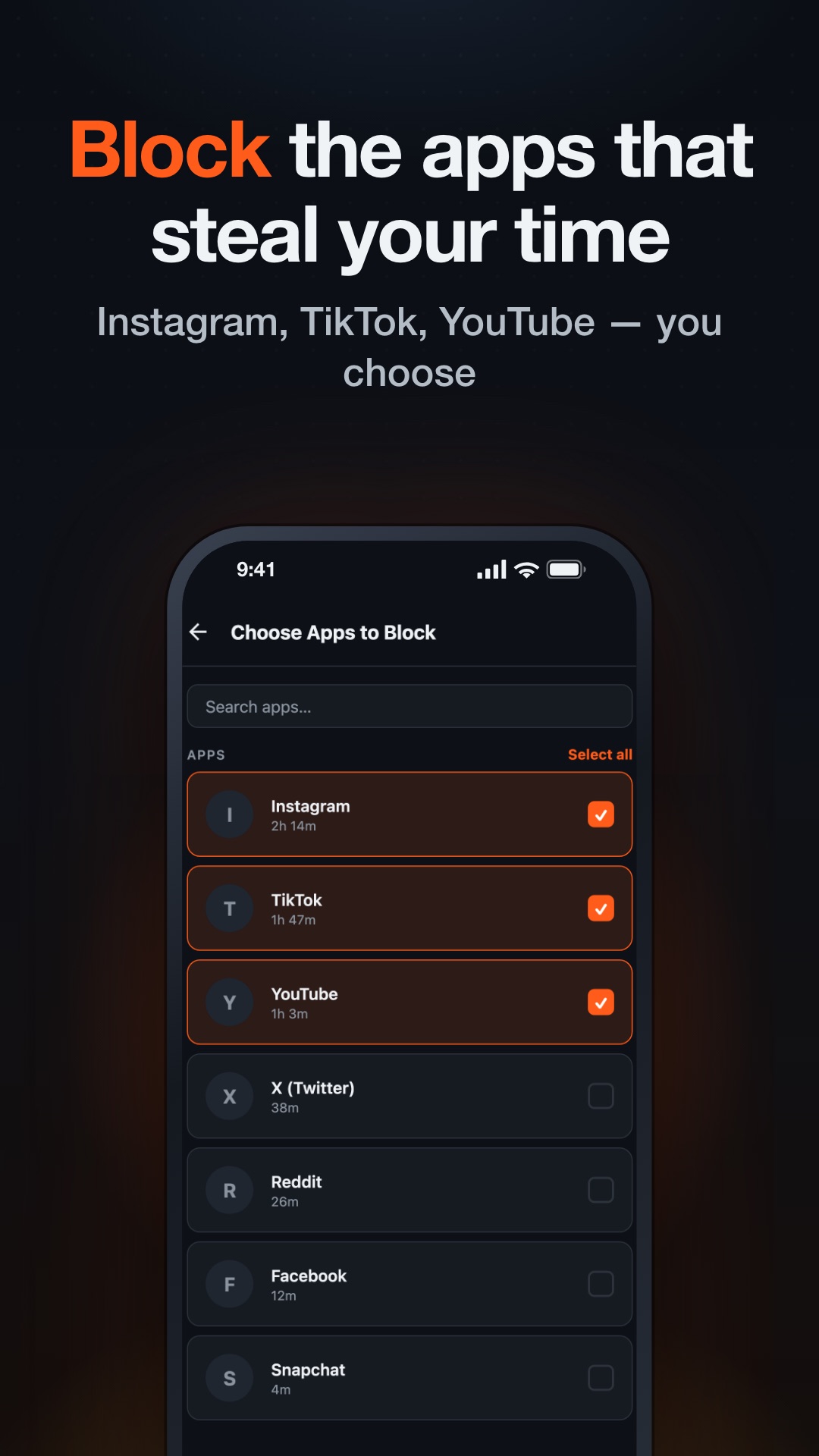
- Tap Choose Apps to Block, then Open App Picker. This is Apple’s own picker. Open the Social category and tick Instagram. You can tick the whole category instead, but if you only want to block Instagram, pick just the app.
- Close the picker. Instagram now shows Apple’s lock screen until you earn time.
- To get in, spin the rep wheels in HonorFit, tap Submit, and the lock lifts for the minutes you earned.
Apple keeps your picks private: it gives HonorFit an anonymous token for each app, not its name. So HonorFit can lock Instagram without knowing which app you chose.
Set it up on Android
- Open HonorFit. On the Permissions required card, tap Allow next to App usage access and turn it on for HonorFit, then do the same for Display over other apps. The first lets HonorFit see which app is on screen, and the second lets it draw the lock screen.
- In Settings, under Background reliability, set HonorFit’s battery usage to Unrestricted. Some phones stop background apps to save battery, and if that happens to HonorFit, your blocked apps unlock without telling you.
- Tap Choose Apps to Block. You’ll see your installed apps, with the ones you used in the last 24 hours at the top. Instagram will almost certainly be there. Tick it.
- Next time you open Instagram with no time banked, you’ll see “Instagram is locked”. Tap Earn more time 💪 to go straight to the rep wheels.
A rep rate that fits Instagram
By default, one pushup earns one minute. For Instagram I’d leave it there, at least for the first week:
- 10 pushups = 10 minutes. That’s enough to read and answer your DMs and get through the stories you care about.
- The free version banks up to 20 minutes. That’s helpful here, because it stops you from stocking up an hour of Reels in the morning.
- The clock only runs inside Instagram. If you reply to a message and switch to your camera, the balance stops counting down. You don’t have to rush.
If a week goes by and you’re still ending up deep in Reels, make it cost more. Pro lets you change what each rep earns, so you could set pushups to 30 seconds each. It also has hard mode, which halves every rep. Squats and situps earn 30 seconds each by default, so they’re an easy way to make a session cost more without changing any settings.
Don’t forget Instagram’s neighbours
Watch for this in your first week. When Instagram gets harder to open, the habit moves to the app next to it. For some people that’s Threads or Facebook, and for others it’s the Instagram website in a browser. If you notice that happening, tick the neighbour app too.
HonorFit can only lock apps. It can’t follow you to instagram.com in a browser. If that’s where you end up, your phone’s built-in website limits will cover it.
Why I didn’t add a camera
Some exercise blockers count your reps with the front camera. HonorFit doesn’t. You scroll a wheel to say how many you did, and that’s it. That makes it quick to do in a kitchen or an office, and it means there’s no camera permission at all. It also means you can cheat. I think that’s fine: the person you’d be fooling is the one who installed a blocker because they wanted to do more pushups. I’ve written more about that choice in an app blocker without a camera or AI.
HonorFit Blocker locks Instagram, or any other app you choose, until you earn it back with pushups. Free on iPhone and Android. Honor system, no camera, no AI, and nothing leaves your phone.